Set up TRAZET yourself, in minutes
Create your account, connect your vehicles and choose your plan. No IT team, no waiting. Follow the 11 steps below.
You need: an email address · a smartphone · your GPS device’s IMEI and SIM number
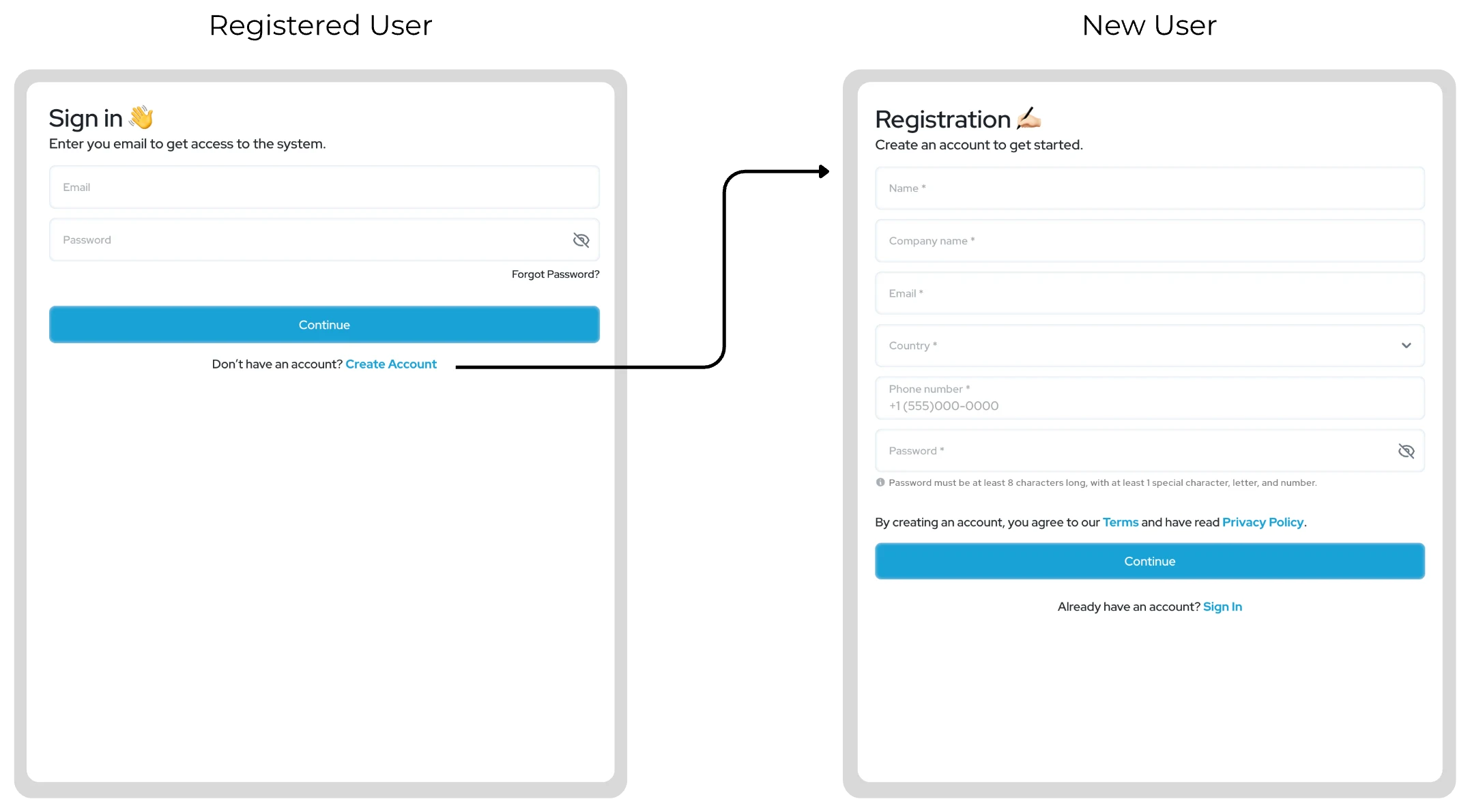
Create your TRAZET account
It takes a minute. All you need is an email address and a smartphone.
Sign in or create an account
Go to web.trazet.com and sign in. New to TRAZET? Click Create account and fill in your details.
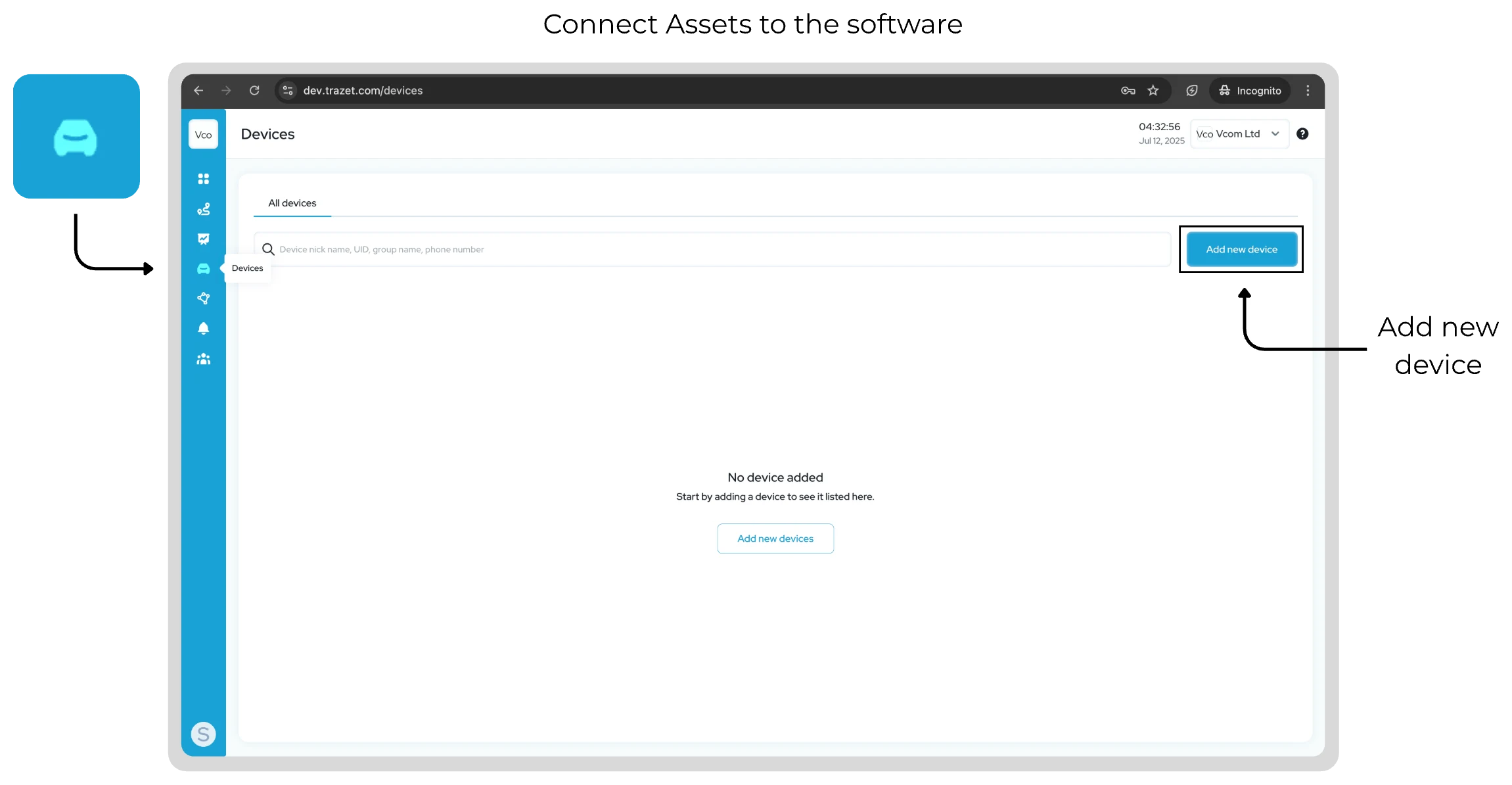
Connect your vehicles
Add each GPS device once and link it to the vehicle or asset you want to follow.
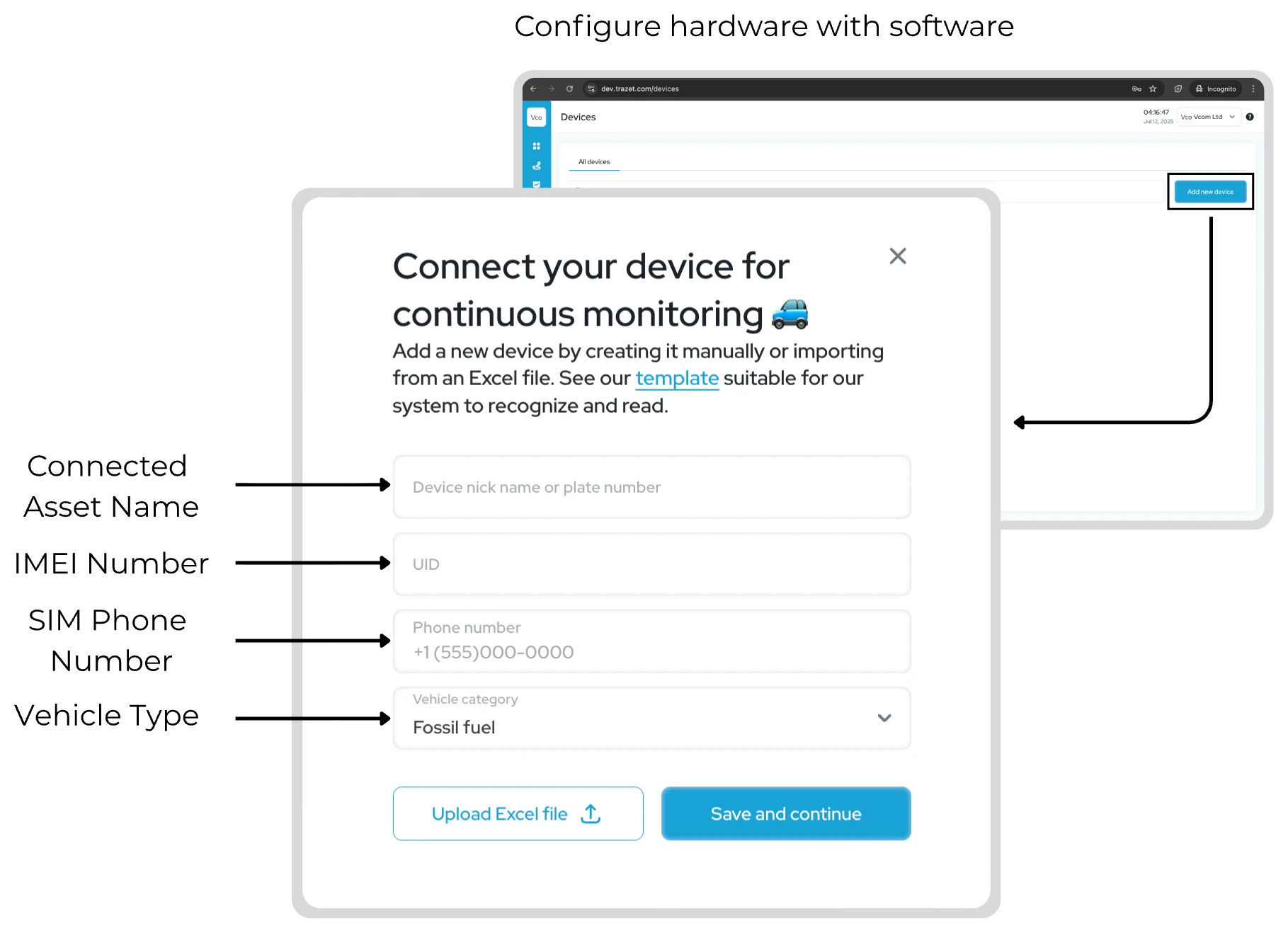
Add a new device
Open Devices in the left menu and click Add new device. Every device is attached to the vehicle or asset it monitors.
Enter the device details
- Asset name: any nickname that helps you recognise the vehicle, e.g. its number plate.
- IMEI number: the device serial number, printed on the device and its box (clearly marked on all KLOUDIP hardware).
- SIM phone number: marked on KLOUDIP devices; for another SIM, check its packaging.
- Vehicle type: choose the type that matches the vehicle.
Save, and your vehicle appears on the map as soon as the device reports. TRAZET works with more than 3000 device models; see Hardware.
Choose your plan and services
Pick a plan and only the services you need. Change them whenever you like.
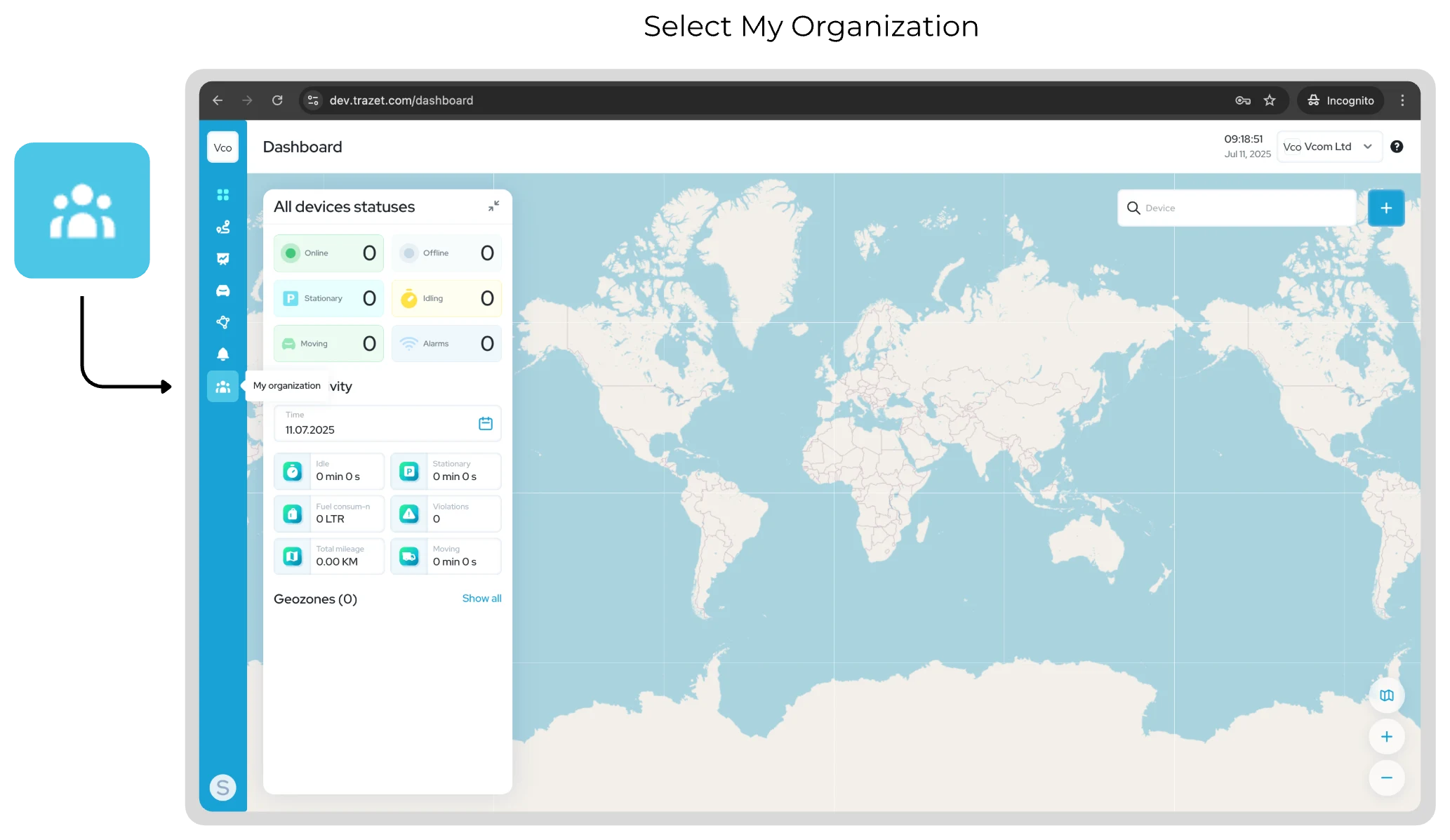
Open My Organization
Click My Organization in the left menu.
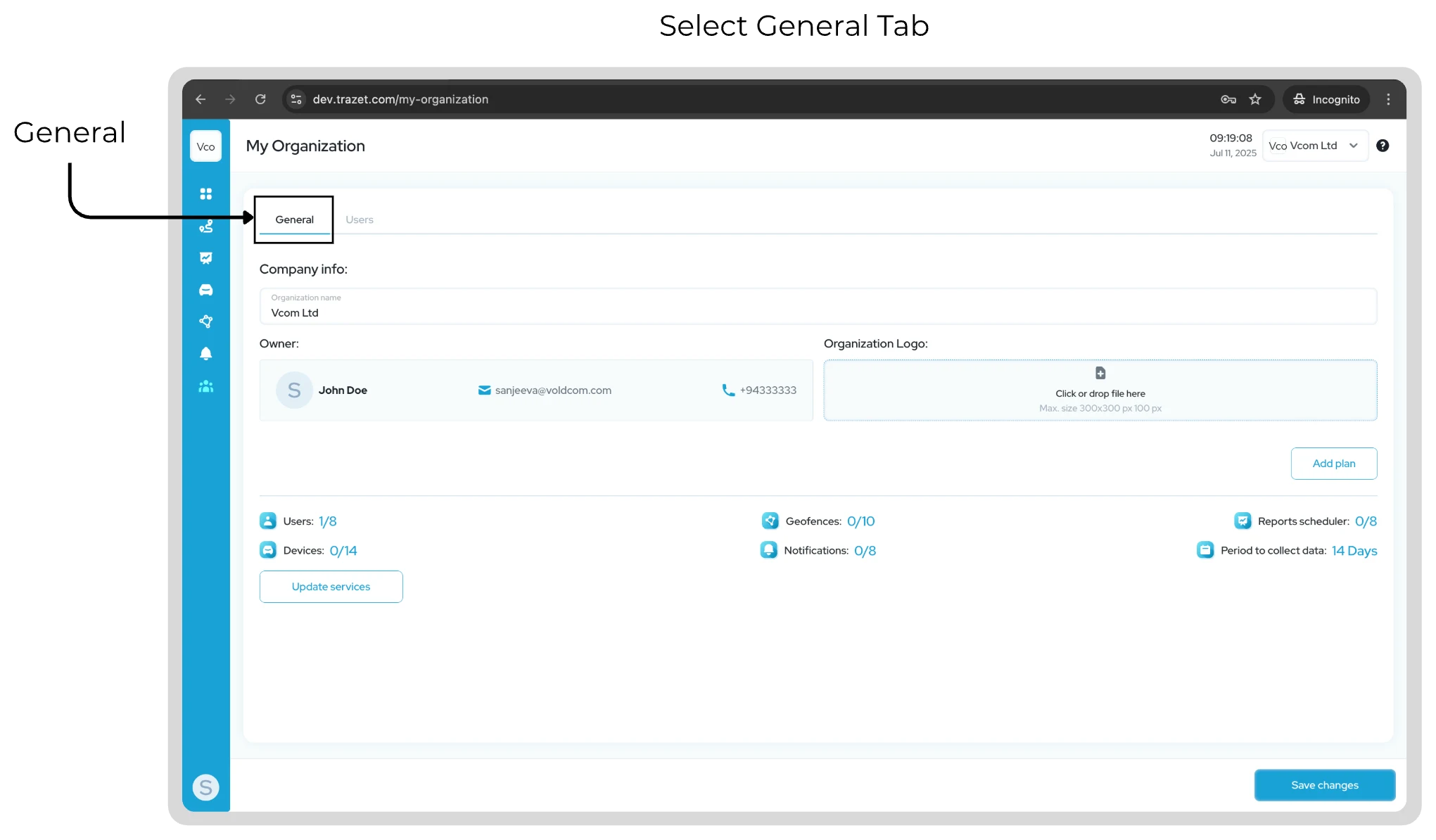
Go to the General tab
The General tab shows your organisation details and the services and limits on your account.
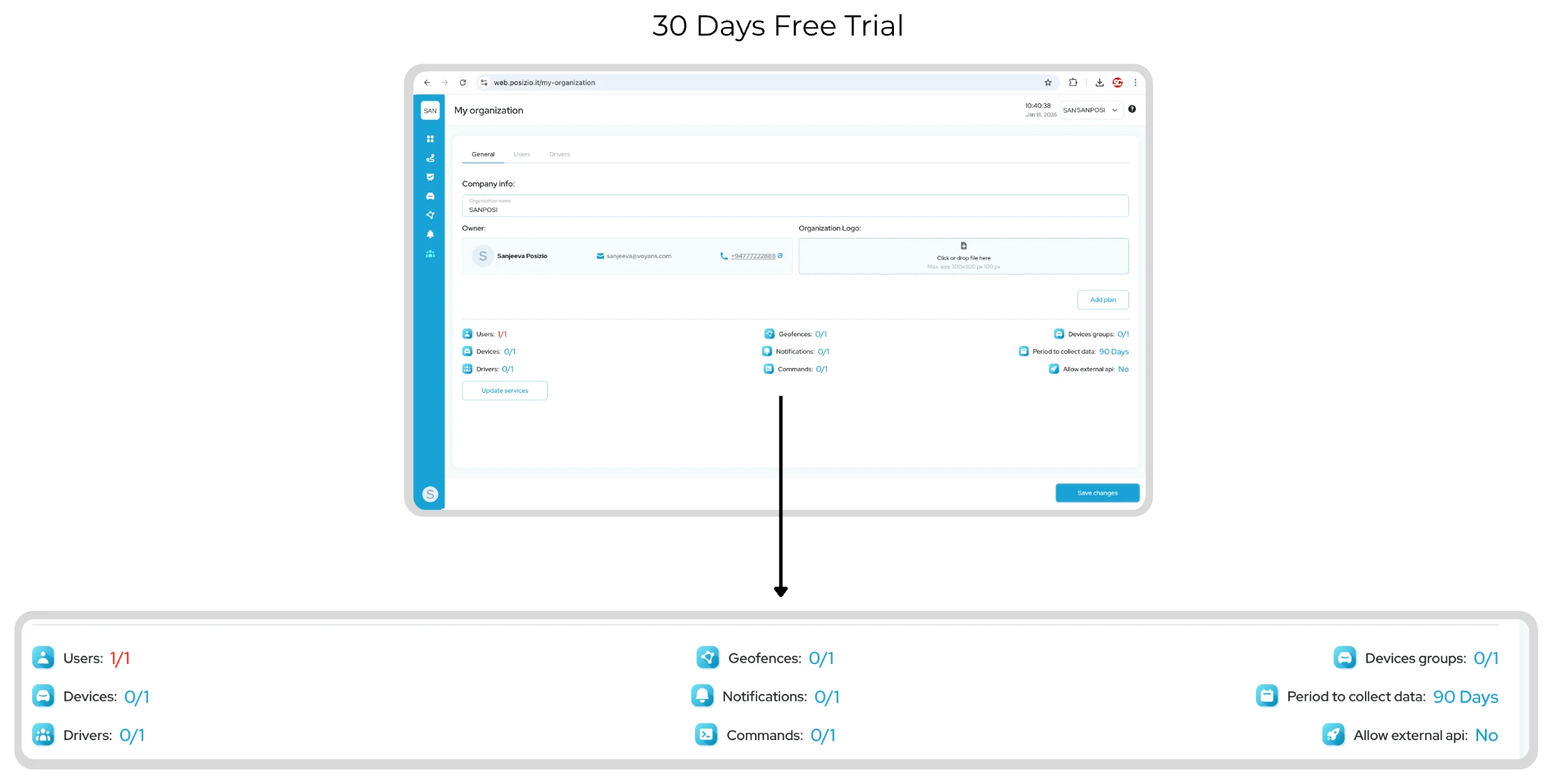
Start with a 30-day free trial
Every new account gets all TRAZET software services free for 30 days. Activate a paid plan at any time during the trial or after it ends; the trial closes automatically when you add a paid plan.
The trial covers the TRAZET software. GPS devices are not included.
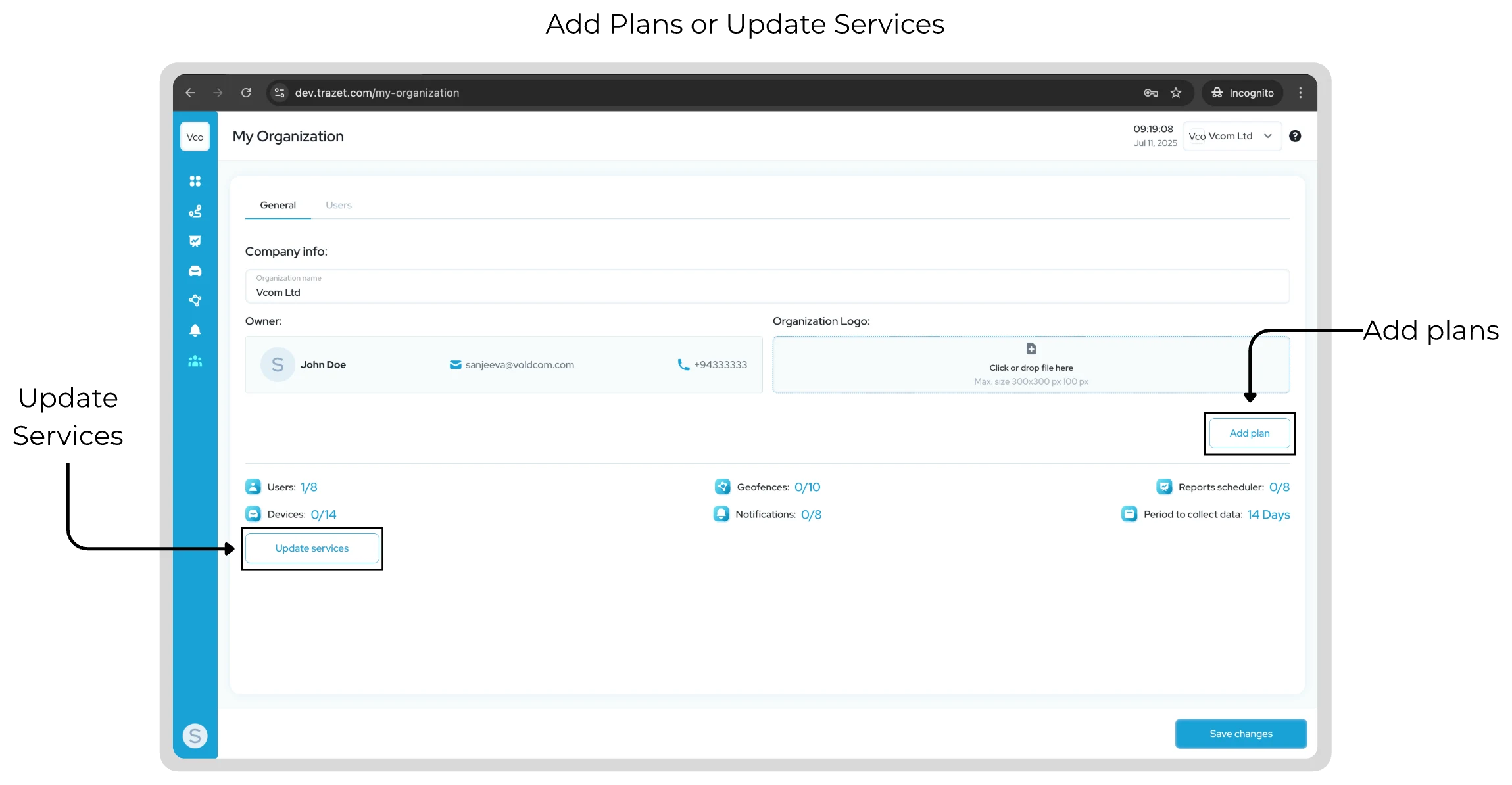
Add a plan or update services
Click Add plans to buy a plan, or Update services to change the services on a plan you already have.
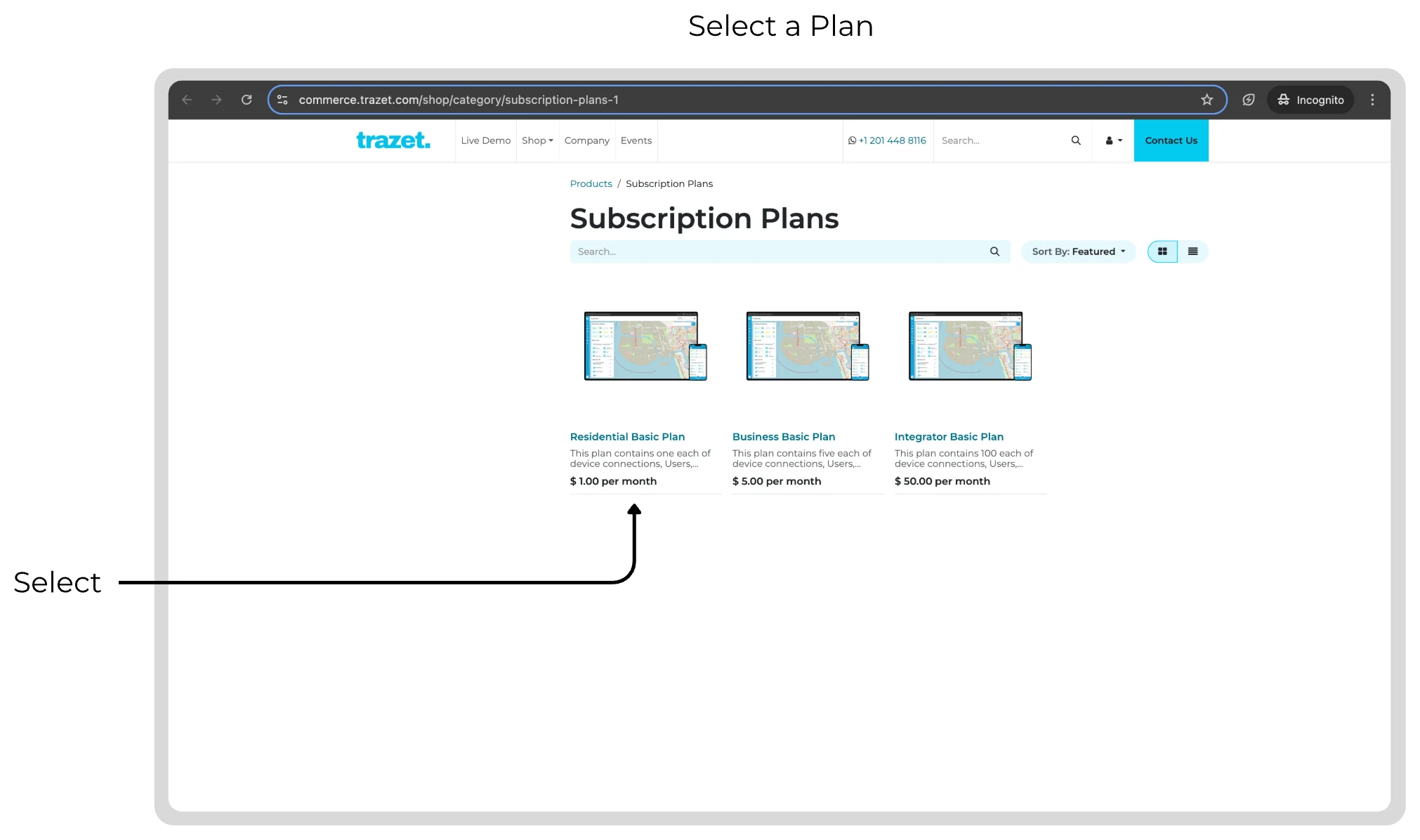
Select a plan
- Choose the plan for your personal or business account.
- Add several plans of the same type, or combine different types.
- Pay monthly or annually, whichever suits you.
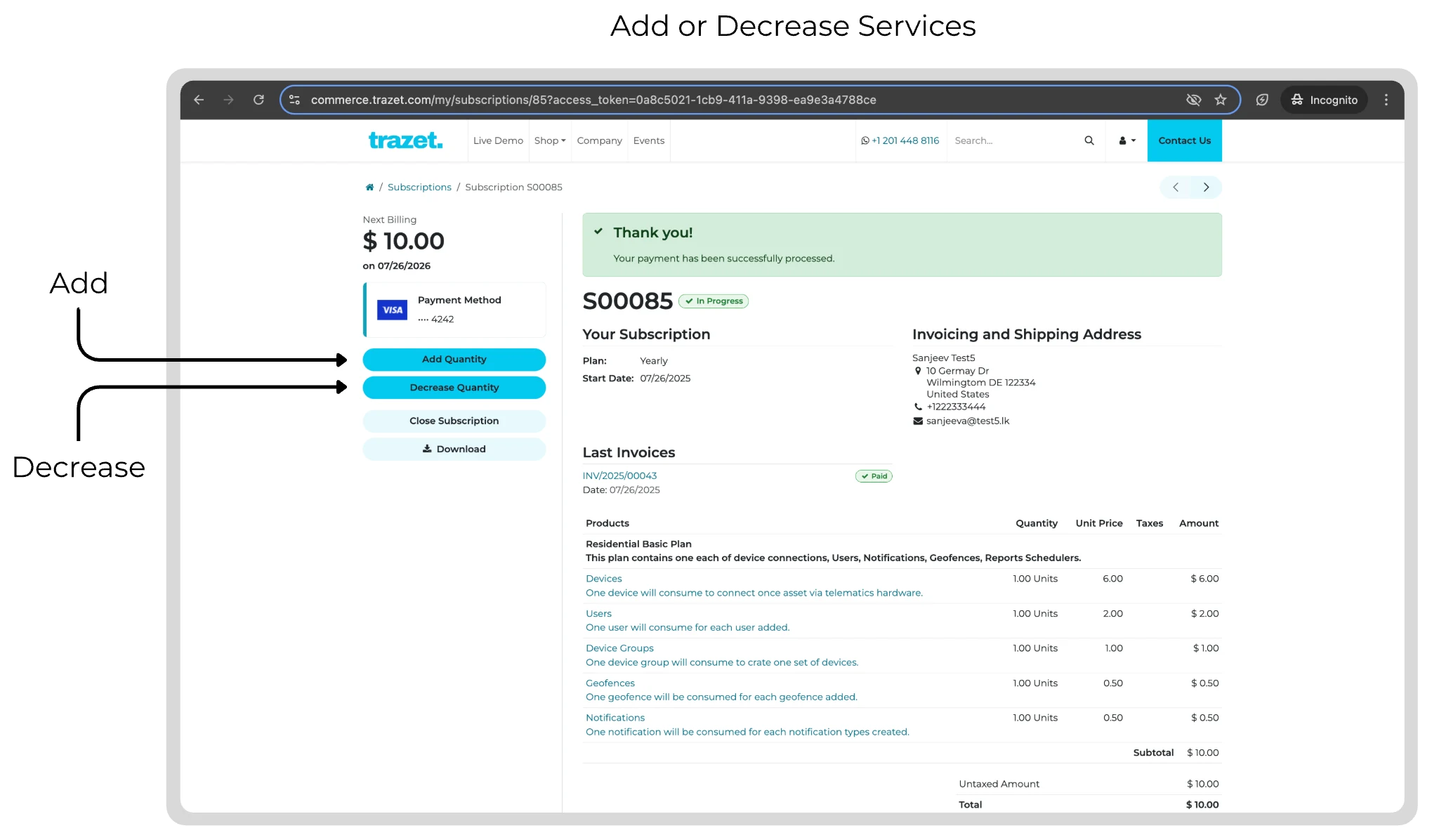
Add or reduce services
Add or remove individual services in a plan to match exactly what you need. Changes are instant, and your billing adjusts automatically with pro-rata charges.
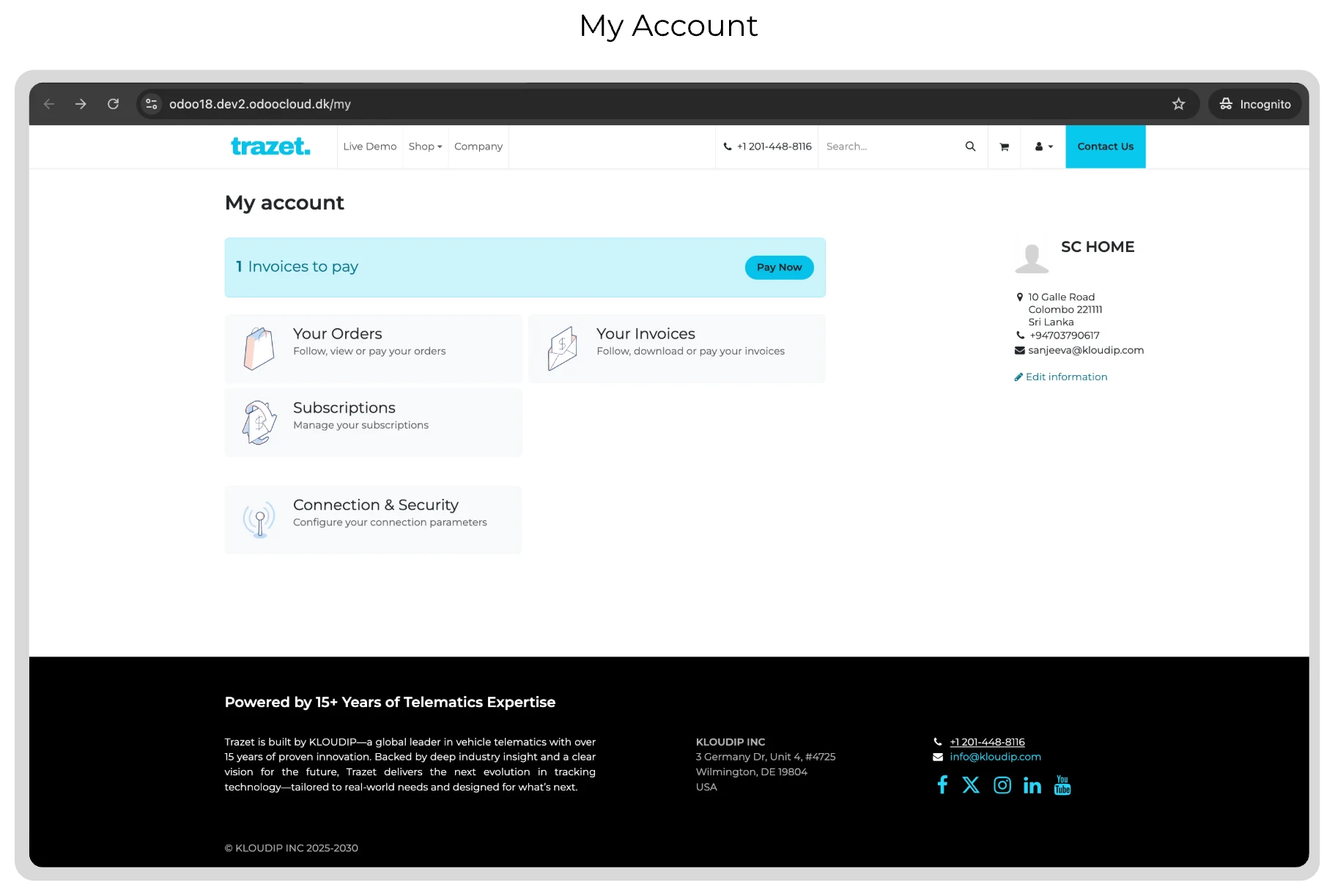
Manage your account
Subscriptions, invoices and support in one self-care portal.
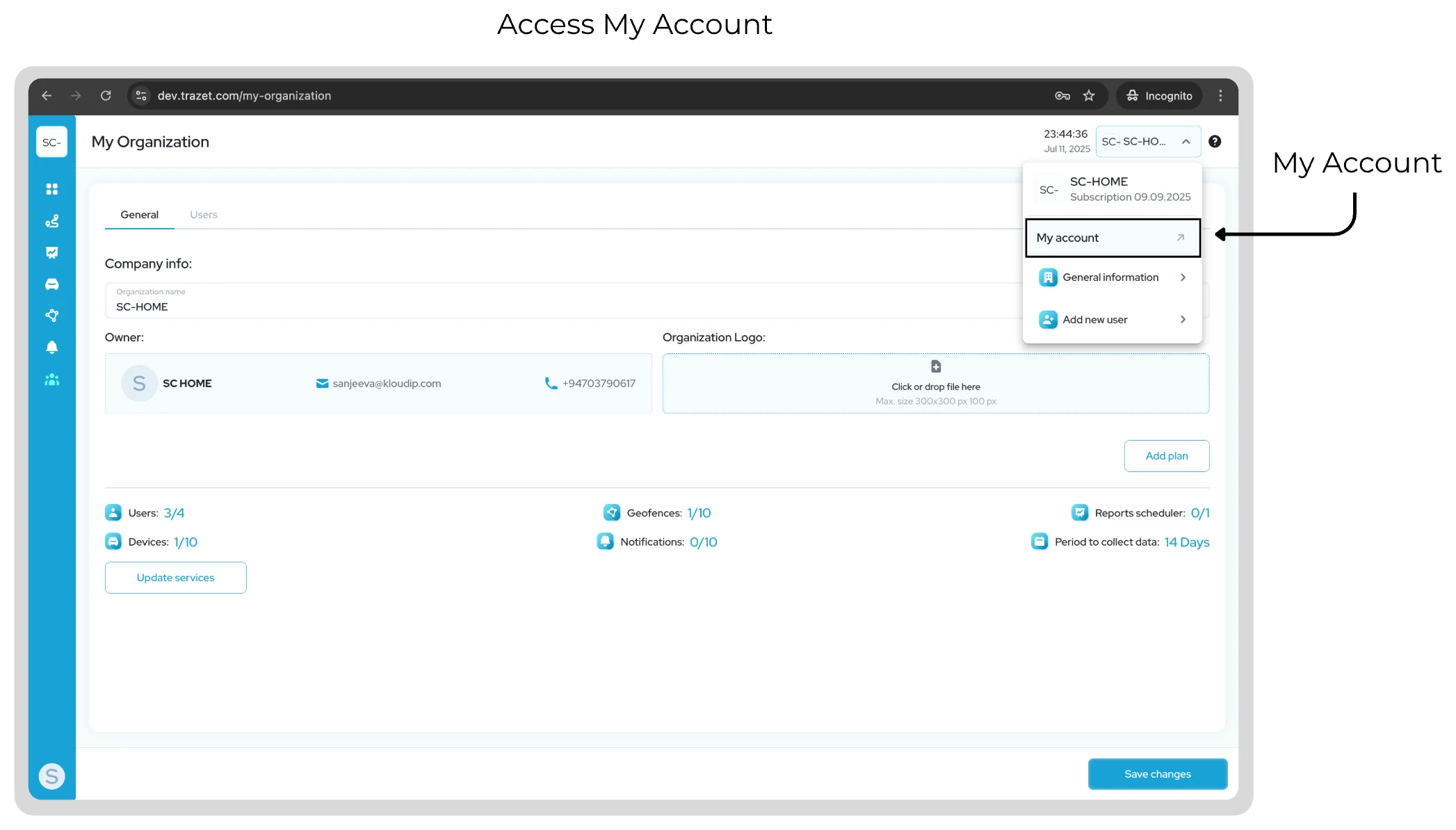
Open My Account
From your account menu at the top right, choose My Account.
Everything in one place
- Subscriptions and plans
- Invoices and payment methods
- Support tickets
- Addresses and account settings